How To Save This Site As App
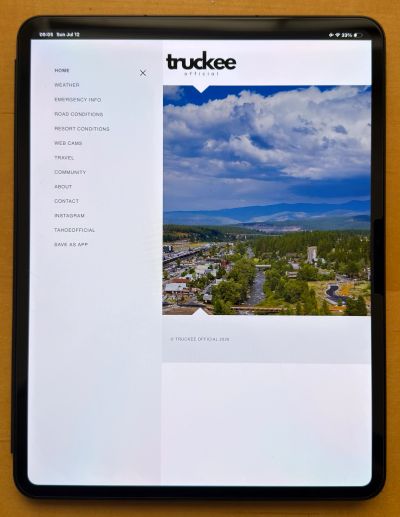
This website is a progressive web app enabled (PWA)
A Progressive Web App, or PWA, is a website that works like an app. You can install it on your phone, tablet or computer for quick access, and it opens in its own window without needing to download it from an app store. It can be removed at any time. Directions below for most devices, browsers and platforms.
iPhone or iPad
Using Safari
- Open Safari.
- Go to the website.
- Tap the Share button—the square with the upward arrow.
- Scroll down.
- Tap Add to Home Screen.
- Change the name if needed.
- Tap Add.
- The website will now appear on your Home Screen like an app.
Using Chrome
- Open the website in Chrome.
- Tap the Share button next to the address bar.
- Tap Add to Home Screen.
- Confirm the name.
- Tap Add.
Android phone or tablet
Using Chrome
- Open Chrome.
- Go to the website.
- Tap the three dots in the upper-right corner.
- Tap Add to Home screen.
- Tap Install or Create shortcut.
- Tap Add.
- The website will appear with your other apps.
Mac computer
Using Safari
- Open the website in Safari.
- At the top of the screen, click File.
- Click Add to Dock.
- Confirm or change the name.
- Click Add.
- The website will appear in your Dock and Applications folder like an app.
This requires macOS Sonoma 14 or newer.
Using Chrome
- Open the website in Chrome.
- Click the three dots in the upper-right corner.
- Click Cast, save, and share.
- Click Install page as app.
- Click Install.
- The website will open in its own app-style window.
Windows computer
Using Chrome
- Open the website in Chrome.
- Click the three dots in the upper-right corner.
- Click Cast, save, and share.
- Click Install page as app.
- Click Install.
- Choose whether to pin it to the Desktop, Taskbar, or Start menu.
Using Microsoft Edge
- Open the website in Microsoft Edge.
- Click the three dots in the upper-right corner.
- Click Apps.
- Click Install this site as an app.
- Confirm the name.
- Click Install.
- Choose whether to pin it to the Desktop, Taskbar, or Start menu.